Android battery life comes down to two separate questions. How long does one charge last, and how many years will the battery keep most of its capacity? The settings that help with each are different, and a surprising share of popular advice helps with neither.
This guide covers what Android already does on its own, the settings worth changing, how to protect long-term battery health on Pixel and Samsung phones, and a myth-vs-fact section grounded in how lithium-ion batteries actually behave.
What Android already does for you
Modern Android does a lot of battery management automatically, which is why many old tips are now redundant.
- Doze kicks in when the phone is unplugged, stationary and has had its screen off for a while. Android's developer documentation explains that Doze suspends network access and defers background jobs and syncs, then opens brief maintenance windows for them. Those windows become less frequent the longer the phone sits idle.
- App Standby holds back background network activity for apps you haven't opened recently.
- Adaptive Battery learns which apps you use and lets the ones you rarely open run less in the background. Google says it's on by default and can take a few weeks to fully take effect after setup or a reset (Pixel Phone Help).
The practical takeaway is to leave these systems alone and focus on the few things they can't fix for you.
Settings that stretch a single charge
The screen comes first
For most people, the display is the biggest single power draw they control. Google's battery help page recommends a shorter screen timeout, lower or automatic brightness and dark theme.
- Adaptive brightness: on a Pixel, this is under Settings > Display & touch. It's on by default and learns your preferences over time.
- Dark theme: on a Pixel, go to Settings > Display & touch > Color & theme. It saves the most on OLED screens, which light each pixel individually.
- Refresh rate: high refresh rates look smoother but use more power. On a Pixel, Smooth Display is under Settings > Display & touch. On a Samsung, choose Standard instead of Adaptive under Settings > Display > Motion smoothness.
Find the app that's actually draining it
Open Settings > Battery and check battery usage. If one app stands out, especially one you barely used, change how it runs in the background. On a Pixel, go to Settings > Apps > See all apps, choose the app, tap App battery usage and set Allow background usage to Optimized. Google notes that some essential services can't be optimized and warns against force-stopping system apps.
Use Battery Saver when you need it, not all the time
Battery Saver (Settings > Battery > Battery Saver on most phones, Power saving on Samsung) turns on dark theme and limits background activity. Google warns that some visual effects, features, network connections and apps may be delayed while it's on. You can schedule it to start at a set percentage. Keeping it on permanently means slower notifications and syncing for a modest gain.
Know which activities cost the most
Google's own list of heavy battery users includes navigation, video and music streaming, graphics-heavy games, tethering, GPS and the camera. You don't need to stop doing these things, but they explain a bad battery day better than Bluetooth being on. Google also suggests preferring Wi-Fi over mobile data, using Airplane mode where you have no signal anyway and turning off location when you don't need it. A good place to start is apps with "All the time" location access, which our privacy and security settings guide shows you how to review.
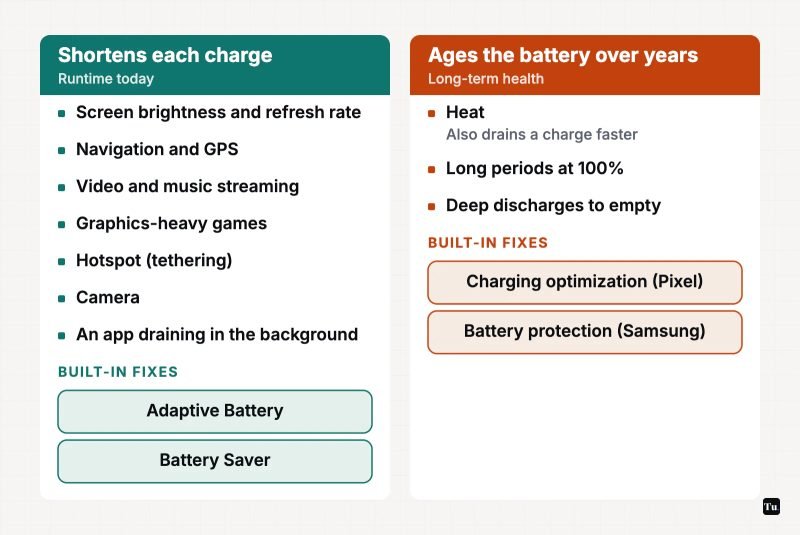
Settings that protect battery health over the years
Lithium-ion batteries wear out faster when they're hot and when they sit at a very high charge for long periods. Battery University, a long-running battery education resource, explains that high temperatures speed up permanent capacity loss, that sitting at full voltage is more stressful than cycling and that partial charges are fine. Both Google and Samsung build charge-limiting features around these facts.
Google Pixel: Charging optimization
Go to Settings > Battery > Battery health > Charging optimization (Pixel Phone Help). You have two options:
- Adaptive Charging learns your routine over about 14 days and times charging to reach 100% roughly an hour before you usually unplug.
- Limit to 80% caps charging on Pixel 6a and later. It's a good fit if you regularly end the day with plenty of charge left.
Google adds that a Pixel needs a full charge every 10th cycle to keep its capacity readings accurate, even with the 80% limit on.
Samsung Galaxy: Battery protection
On One UI 6.1 and later, go to Settings > Battery > Battery protection (Samsung support). Samsung offers three modes:
- Basic stops charging at 100% and resumes when the battery drops to 95%.
- Adaptive uses the 80% cap while you sleep and finishes charging before you usually wake up.
- Maximum stops charging at 80%.
Keep it cool
Google's Pixel guidance says a battery drains much faster when it's hot, even when you're not using the phone, and that this kind of drain can damage it. Don't leave your phone on a car dashboard, take thick cases off for long gaming sessions and avoid heavy use while fast-charging. Our Android gaming performance guide covers heat during play in more detail.
Myth vs. fact
| Myth | Fact |
|---|---|
| Swiping away apps saves battery. | Google says you won't run out of memory or battery by leaving apps open, because Android manages both automatically. A closed app also has to start from scratch the next time you open it. |
| You should drain the battery to 0% before charging. | Lithium-ion batteries have no "memory." Google's Pixel help says you don't need to teach your phone its capacity by running it from full to empty, and deep discharges add wear. |
| Charging overnight ruins the battery. | The real stress is time spent at 100%, especially in a warm room. Adaptive Charging on Pixel and Battery protection on Samsung exist to limit that. |
| Topping up to 100% whenever you can is best. | Partial charges are fine, and keeping the battery at full voltage for long periods speeds up aging. Charge whenever it's convenient. |
| A battery-saver app from the Play Store will add hours. | Doze, App Standby and Adaptive Battery already restrict background work. Most of these apps repeat built-in features or kill apps, which makes them reload later. |
| Turning off Wi-Fi and Bluetooth is the biggest win. | Google does suggest turning them off when you don't need them, but its own list of heavy battery users is led by navigation, streaming, gaming and the camera. |
When the battery itself is worn out
All lithium-ion batteries lose capacity with age. If a phone that used to last all day now struggles despite the steps above, check whether it shows a battery health estimate under Settings > Battery, then contact the manufacturer about a replacement. If the battery swells, or the back or screen starts lifting, stop using and charging the phone and get it serviced.
The short version
- Leave Adaptive Battery on and let Android handle background apps.
- Manage the screen first: brightness, timeout, dark theme and refresh rate.
- Find and optimize the one app that's draining your battery, if there is one.
- Turn on Charging optimization (Pixel) or Battery protection (Samsung) to help the battery last for years.
- Keep the phone cool. Heat hurts both today's runtime and long-term health.
For more settings most people never touch, see our guide to Android features most people never turn on.
Sources
- Android Help: Fix battery drain problems
- Pixel Phone Help: Adaptive Battery and app battery optimization
- Pixel Phone Help: Get the most life from your Pixel phone battery
- Pixel Phone Help: Screen and display settings
- Samsung UK Support: Galaxy Battery protection feature in One UI 6.1
- Android Developers: Optimize for Doze and App Standby
- Android Help: Close apps (memory and battery managed automatically)
- Battery University: BU-808 How to prolong lithium-based batteries