Most Android privacy and security settings are sensible by default, but defaults can't account for the apps you've installed, the permissions you've granted over the years or what happens if your phone gets stolen. A short review fixes that, and you only need to do it every few months.
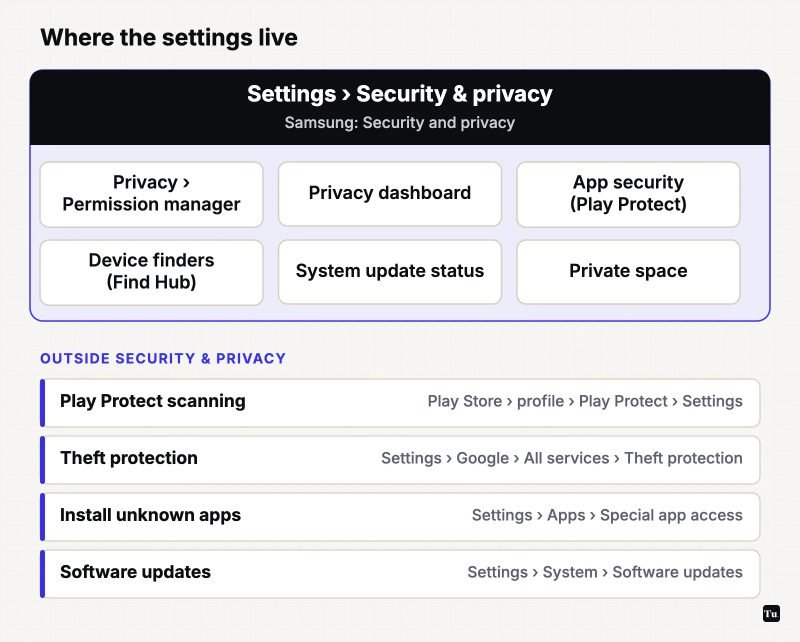
The paths below follow Android 17, the current stable release, on Pixel phones, with Samsung differences noted. On Android 13 and later, most of these controls live together under Settings > Security & privacy. Samsung calls the same section Security and privacy. On Android 12 and earlier, they're split between separate Security and Privacy menus.
Start with the overview screen
Open Settings > Security & privacy. The top of the page shows either "Looks good" or a warning that the device is at risk, with suggested fixes. Google's Android Help says this hub collects app security warnings from Google Play Protect, device lock settings, Google Account alerts, system update status and your Find Hub settings. Clear any warnings here first. They're usually the quickest wins.
1. Install updates, and check how old your patch is
Security fixes arrive through system updates, so this matters more than any toggle. Check for updates at Settings > System > Software updates (Android Help). To see how current you are, go to Settings > About phone > Android version, which shows your security update level and Google Play system update. Samsung keeps updates under Settings > Software update. Keep your apps updated through Google Play too. If your phone has stopped receiving security updates altogether, factor that into when you replace it.
2. Audit app permissions with Permission manager
Go to Settings > Security & privacy > Privacy > Permission manager, then tap a permission type such as Location, Camera or Microphone (Android Help). Seeing everything grouped by permission makes oddities obvious, like a flashlight app with microphone access. On Samsung phones, Permission manager sits in the Privacy section of Security and privacy (Samsung support).
- Location: few apps need "Allow all the time." "Allow only while using the app" or "Ask every time" covers most cases.
- Camera and microphone: remove access from any app that has no obvious reason to use them.
- Contacts, SMS, call logs: grant these to as few apps as possible.
Android 17 adds finer-grained options. Google's 2026 security announcement describes a button that lets apps get precise location temporarily for a specific task, an on-screen indicator when location is accessed (like the existing camera and microphone indicators) and a contact picker that shares only the contacts you select instead of your whole address book. How useful these are depends on whether your apps adopt them.
3. Check the Privacy dashboard
Permission manager shows what apps can do. The Privacy dashboard shows what they actually did. Open Settings > Security & privacy > Privacy dashboard (on some phones it's inside Privacy) to see which apps used location, camera, microphone and other permissions, and when (Android Help). Depending on your Android version, it covers the last 24 hours or the last 7 days. If an app used the microphone at a time you weren't using it, revoke the permission and consider uninstalling the app.
4. Let unused apps lose their permissions automatically
Android can take permissions back from apps you've stopped using. Open an app's info page (Settings > Apps, then the app), and under "Unused app settings" turn on Pause app activity if unused. Check it on the apps you'd least want holding old permissions, such as a shopping app you installed once for a sale.
5. Keep Google Play Protect on
Play Protect checks apps from Google Play before you download them, periodically scans your device for harmful apps from any source, warns you about risky apps and can disable or remove them. Google recommends leaving it on (Google Play Help). To check, open the Play Store, tap your profile icon, then Play Protect > Settings, and make sure Scan apps with Play Protect is on. The Improve harmful app detection option sends unknown apps to Google for analysis.
Google is also expanding Live Threat Detection, its on-device monitoring of app behavior. With Android 17, it's adding checks for patterns such as SMS forwarding, apps hiding their icons and misuse of accessibility overlays, with that monitoring rolling out in the second half of 2026.
6. Treat sideloading as an exception
Installing an APK from outside an app store ("sideloading") skips the store's review, so it carries more risk. Fake versions of popular or not-yet-released games are a classic lure. Since Android 8, each app needs its own permission to install other apps. Review that list at Settings > Apps > Special app access > Install unknown apps and turn it off for browsers and messaging apps you don't use for installs.
The rules are also tightening. Under Google's developer verification program, certified Android devices in Brazil, Indonesia, Singapore and Thailand began checking that apps come from verified developers on September 30, 2026, with a global expansion planned for 2027. Sideloading apps from unverified developers is still possible through what Google calls an "advanced flow" with extra safeguards. If you need to sideload, get the file directly from the developer's official site and leave Play Protect on.
7. Make sure Find Hub can find your phone
Google renamed Find My Device to Find Hub in 2025. It turns on automatically when you add a Google Account. To work, it needs the phone to be on, signed in, connected to mobile data or Wi-Fi and visible on Google Play (Android Help). From the Find Hub app or android.com/find, you can play a sound (it rings for 5 minutes even on silent), Mark as lost to lock the phone or factory reset it as a last resort. The Security & privacy screen shows your Find Hub status.
Android 17 strengthens Mark as lost. Google says you can now require biometric unlock, so a thief who knows your PIN still can't get in or turn off tracking, and marking a phone as lost hides Quick Settings and blocks new Wi-Fi and Bluetooth connections. Samsung phones also support Samsung's own SmartThings Find, which you can set up alongside Find Hub.
8. Turn on theft protection
Go to Settings > Google > All services, and under "Personal & device safety" tap Theft protection (Android Help). You'll need a screen lock. The options include:
- Theft Detection Lock: uses motion sensors and other signals to spot a snatch-and-run and lock the screen.
- Offline Device Lock: locks the screen if an unlocked phone stays offline for a long time, which defeats thieves who cut the connection to avoid a remote wipe.
- Failed Authentication Lock and Remote Lock, which lets you lock the phone from android.com/lock using your phone number.
- Identity Check: requires biometrics for sensitive changes when you're away from trusted places. It's only available on phones with strong (class 3) biometrics.
Theft protection works on Android 10 and later, but some features need Android 15 or later. It isn't available on Android Go devices or tablets.
9. Use a real screen lock, and hide what's sensitive
A PIN or password plus fingerprint or face unlock underpins almost everything above. Android 17 also cuts the number of allowed PIN guesses and lengthens the wait between failed attempts. For apps you'd rather keep out of sight, such as banking, health or dating apps, Android 15 and later offer Private space, a separately locked area for apps. Samsung's equivalent is Secure Folder. Both are covered in our roundup of Android features most people never turn on.
People at higher risk of targeted attacks, such as journalists or public figures, should also look at Advanced Protection on Android 16 and later. It switches on a stricter set of defenses with a single setting.
A quick routine to repeat
- Clear any warnings on the Security & privacy screen.
- Install pending system and app updates.
- Skim Permission manager for location, camera and microphone access.
- Glance at the Privacy dashboard for surprises.
- Confirm that Play Protect, Find Hub and theft protection are on.
- Turn off "Install unknown apps" wherever you don't need it.
While you're in Settings, our guides to Android battery life and freeing up storage cover two other checkups worth doing at the same time.
Sources
- Android Help: Learn about Android security and privacy settings
- Android Help: Check and update your Android version
- Android Help: Change app permissions
- Android Help: Manage permissions from the privacy dashboard
- Samsung US Support: Use Security and privacy settings on Galaxy phones
- Google Play Help: Use Google Play Protect
- Android Developers: Android developer verification
- Android Help: Find, lock, or erase a lost Android device (Find Hub)
- Android Help: Protect your personal data against theft
- Google Security Blog: Android theft protection
- Google Blog: What's new in Android security and privacy in 2026
- Google Blog: Android 17 features