"Lag" is one word for two different problems. Sometimes your connection to the game server is slow or unstable. Other times your phone can't draw frames fast enough. The fixes barely overlap, so the quickest way to reduce lag in mobile games is to work out which problem you have before you change any settings.
This checklist starts with a short diagnosis and then covers fixes for each kind of lag. It also flags a few popular "boosts" that do little or nothing.
Two problems that both get called lag
Network lag: the game world is behind
Network lag is a delay or interruption between your phone and the game server. It's usually measured as ping (or latency), the time a round trip to the server takes. You might see enemies teleport, hits register late, your character snap back to an earlier position ("rubber-banding") or a reconnect spinner. The giveaway is that menus and animations still look smooth. Your phone is rendering fine and is simply waiting on data.
Device lag: the picture itself stutters
Device lag happens when your phone can't keep up with rendering. The frame rate drops, the screen hitches when effects stack up, and touch input feels heavy. It happens whether or not you're online, and it often gets worse the longer you play, because heat makes the phone slow itself down (more on that below).
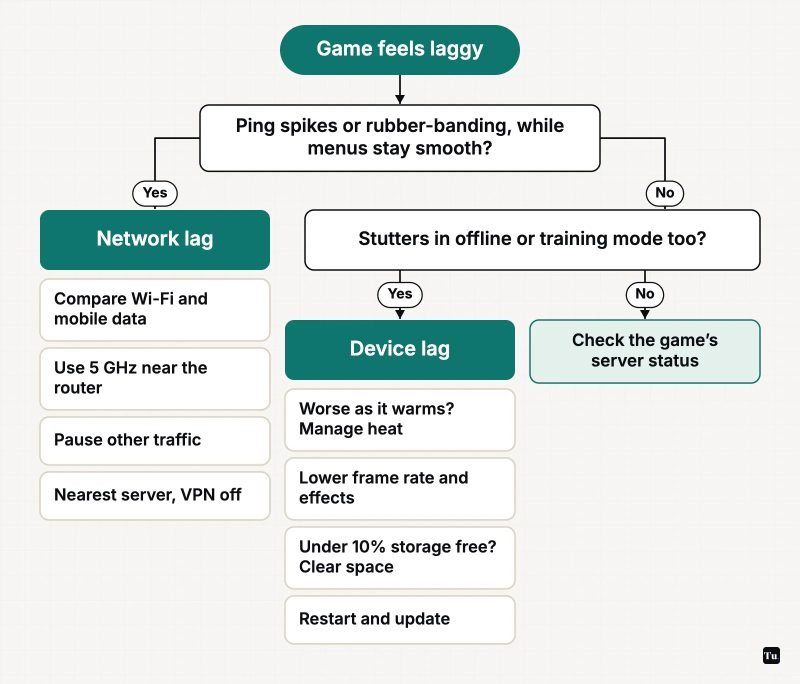
A quick diagnostic flow
Run through these questions in order. Most people can pin down the cause within one or two sessions.
- Look for a ping or network indicator. Many online games can show latency on screen or in their settings. If the number jumps or turns red exactly when the game misbehaves, start with the network fixes.
- Try an offline or training mode. If the game still stutters with no opponents and no server traffic, the problem is the device.
- Notice when it starts. If the game is smooth for the first few matches and then degrades while the phone gets warm, heat is the likely cause.
- Swap connections. Google's own Android troubleshooting suggests switching between Wi-Fi and mobile data to isolate a connection problem. If one network is fine and the other isn't, you've found it.
- Check whether it's just one game. If only one title lags and everything else runs well, the cause may be that game's servers or your chosen server region. Check the developer's official status channels before you change anything on your phone.
Fixing network lag
Compare Wi-Fi and mobile data honestly
Neither is always better. Wi-Fi quality depends on how far you are from the router and what's in the way. Mobile data depends on signal strength and how busy the local cell is. Play a few matches on each in the place you usually play and compare the in-game ping. Google's guide to fixing connection problems on Android also recommends restarting the phone first, and toggling Airplane mode on for a few seconds and then off to refresh the mobile connection.
Pick the right Wi-Fi band and spot
Most home routers broadcast on 2.4 GHz and 5 GHz. In general, 5 GHz is faster and less crowded but has a shorter range, while 2.4 GHz reaches farther but shares the airwaves with lots of other gear. Google's Wi-Fi interference guide names cordless phones, Bluetooth devices and baby monitors as common sources of interference. It also warns that concrete, brick and metal can slow or block the signal.
- If your router shows separate network names for each band, join the 5 GHz network when you're in the same room or close by.
- Move closer to the router. Google notes that even a few feet can make a big difference in signal strength.
- If the router has been on for a long time and everything feels slow, restart it. Google suggests unplugging it, waiting about 30 seconds and plugging it back in.
Cut competing traffic
A 4K stream on the TV, a console download or a cloud photo backup can all crowd your connection at the worst moment. On the phone itself, pause big Play Store updates and uploads before a ranked match. Games don't need much bandwidth, but they're sensitive to delay, and a saturated connection adds delay.
Choose the closest server region
If the game lets you pick a region or server, choose the one geographically closest to you. Distance adds latency that no phone setting can remove.
Turn off VPNs and Battery Saver while playing
A VPN sends your traffic through an extra server, which usually adds latency unless that server happens to sit on a better route. Battery Saver can also get in the way. Google's battery help page says it limits background activity and that network connections may experience delays while it's on.
Reset network settings as a last resort
If connections have been flaky everywhere for a while, a network reset clears out bad configuration. On a Pixel, go to Settings > System > Reset options, then choose Reset Bluetooth & Wi-Fi or Reset mobile network settings, as described in Pixel Phone Help. Samsung and other brands put a similar option under a Reset menu, so search Settings for "reset." Resetting deletes your saved Wi-Fi networks, so have the passwords handy.
Fixing device lag
Manage heat first
Android's developer documentation is blunt about this. A phone can only sustain high performance for a limited time before it's thermally throttled, and how soon that happens depends on the weather, recent usage and the phone's thermal design. Once throttling starts, the system pulls performance down to shed heat, and that shows up as falling frame rates.
- Take off thick or insulating cases for long sessions.
- Avoid playing in direct sun or under a blanket.
- Try not to fast-charge during heavy play, because charging adds heat of its own. Some phones can power the game straight from the charger, which our Android gaming performance guide explains.
Lower the game's own settings
In-game graphics and frame-rate options have the biggest single effect on smoothness. In our view, a steady lower frame rate feels better than a higher one that keeps dipping, so try capping the frame rate one step down and reducing effects such as shadows before you lower resolution.
Restart, and watch what runs in the background
You don't need to close every app. Google says Android manages memory automatically, and you won't run out of memory or battery just by leaving apps open. But one genuinely heavy task, like a video export, a large download or turn-by-turn navigation, does compete with your game. A simple restart is also the first step in Google's guide to speeding up a slow Android device.
Keep some storage free
The same Google guide warns that a phone can start having issues when less than 10% of its storage is free. If you're near that line, our guide to freeing up storage on Android walks through safe ways to reclaim space.
Update the game and the system
Developers ship performance fixes in game updates, and Android updates change how the system handles memory. Google says Android 17, the current stable release, made memory cleanup more efficient to cut frame drops and stutters. Check Settings > System > Software updates (wording varies by brand) and update the game from Google Play.
What doesn't really help
- "RAM cleaner" and "game booster" apps from unknown developers. Android already manages memory, and force-closing apps makes them start from scratch later. Built-in game modes from Google or your phone's maker are a better bet.
- "Ping reducer" apps. No app can shorten the physical distance to a server. Some work by routing your traffic through their own servers, which brings the same trade-offs as any VPN.
- Swiping away apps between every match. It costs you time and does nothing for network lag.
Your pre-match checklist
- Check the game's ping indicator. If it spikes, fix the network before you touch graphics settings.
- Use 5 GHz Wi-Fi near the router, or compare against mobile data.
- Pause big downloads, backups and streams on your network.
- Turn off VPN and Battery Saver for the session.
- Keep the phone cool, take off heavy cases and avoid fast charging while you play.
- Cap the frame rate one step lower if it keeps dipping.
- Keep at least 10% of your storage free and stay updated.
Once the basics are sorted, our picks of multiplayer Android games to play with friends are a good place to see the difference.
Sources
- Android Help: Fix internet connection problems on Android devices
- Google Home and Nest Help: Wi-Fi interference and signal strength
- Android Help: Fix battery drain problems (Battery Saver behavior)
- Pixel Phone Help: Reset network settings
- Android Developers: Thermal API and thermal throttling
- Android Help: Speed up a slow Android device
- Android Help: Close apps (memory managed automatically)
- Google Blog: Android 17 features