A full phone does more than block new photos. Google's Android Help warns that a phone can start having problems when less than 10% of its storage is free, so it pays to free up storage on Android before you hit that wall. The goal of this guide is to reclaim space without deleting anything you'd miss.
The steps below run from the safest to the most drastic. Menu names come from Google's Pixel documentation and Samsung's support pages. Other brands use similar wording, and searching Settings for "storage" will get you close on any phone.
First, see what's using the space
Don't delete blindly. Open the storage overview and see which categories are the biggest:
- Pixel and most Android phones: Settings > Storage. Tap a category to see what's inside it.
- Samsung Galaxy: Settings > Battery and device care > Storage. Older versions of One UI call it Device care.
Usually one or two categories, often photos and videos or a few large apps and games, account for most of the space. Start there. You can't shrink the System category yourself, so ignore it.
Back up before you delete
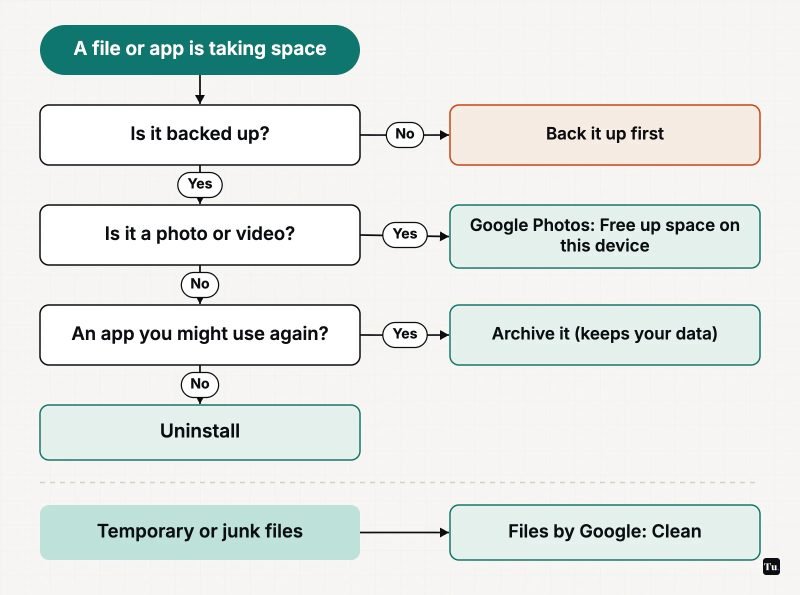
For photos, open Google Photos and confirm that backup is turned on and complete. For documents and downloads, copy anything important to cloud storage or a computer. Google's guide also suggests moving files to a computer over a USB cable and then deleting them from the phone.
Safe wins, from least to most risky
1. Empty the trash
Deleted items often sit in a trash folder and keep using space until it's emptied. On a Pixel, the Free up space tool under Settings > Storage moves files to the trash rather than deleting them on the spot. Samsung's storage screen has a Recycle bin entry that shows each app's bin. Empty the bins once you're sure nothing in them matters.
2. Clear junk files with Files by Google
The Files by Google app finds temporary files that apps leave behind. Open the app, tap Clean, then on the Junk files card tap Clean and confirm. Google says this doesn't affect app settings, but the files are permanently deleted (Files by Google Help). The same tab suggests other candidates, such as blurry photos, old screenshots and duplicate files. Review each suggestion before you accept it. If you want more control than the built-in tools offer, see our guide to file manager apps for Android.
3. Remove downloaded media you've already watched or heard
Offline movies, playlists and podcasts add up quickly. Google's own examples are removing downloads in the Google TV app's Library and using Clear downloads in YouTube Music's Downloads & storage settings. Most streaming apps have a similar downloads screen. You can always download them again.
4. Let Google Photos remove backed-up copies
If your photos are backed up, open Google Photos, tap your profile picture, then Free up space on this device, and confirm. Google's Photos Help page explains the catches. Items less than 30 days old may stay on the phone. Everything removed stays in your library but needs a connection to view. And removing local copies doesn't free up any of your Google account storage.
5. Archive apps instead of uninstalling them
Archiving is the option most people don't know about. An archived app loses its installed code, permissions and temporary files but keeps its icon and your data. Tap the faded icon later and it reinstalls right where you left off. On Android 15 and later, go to Settings > Apps, pick the app and tap Archive. You can also let the Play Store archive apps you rarely use when storage runs low. That option is called Automatically archive apps and sits in the Play Store's General settings. Google notes that restoring only works if the app is still available in the store (Android Help).
6. Uninstall apps you genuinely don't use
Samsung's storage screen has an Unused apps list to make this easy. Paid apps can be reinstalled later at no charge. Games are usually the biggest items, so check whether your progress is saved to an account or the cloud before you remove one.
7. Trim messaging app media
Group chats quietly fill phones with videos and forwarded memes. WhatsApp, for example, has a Manage storage screen under Storage and data in its settings. You can sort items by size there and delete the largest first (WhatsApp Help).
8. Hunt down duplicates and large files
Samsung's storage screen offers Duplicate files and Large files views (Samsung support). On other phones, Files by Google's suggestions cover similar ground. Old screen recordings and downloaded installers are common culprits.
Cache vs. storage: what clearing actually does
Every app's settings page has two buttons that sound alike but work very differently. On a Pixel, you'll find them at Settings > Apps > See all apps, then the app, then Storage & cache.
| Button | What it deletes | When to use it |
|---|---|---|
| Clear cache | Temporary data only. Google warns that some apps may be slow the next time you open them. | When one app's cache has grown very large, or the app is misbehaving. |
| Clear storage | All of the app's data, permanently, which can include sign-ins, settings and offline content. | Only when you're prepared to set the app up again from scratch. |
Be realistic about clearing cache. Apps rebuild it as you use them, so it's a temporary fix rather than a long-term way to save space.
Put it on autopilot
- Smart Storage (Pixel): Settings > Storage > Free up space, open the menu, tap Settings and turn on Smart Storage to remove backed-up photos and videos automatically (Pixel Phone Help).
- Auto-archive: turn on Automatically archive apps in the Play Store so rarely used apps shrink when space runs low.
- microSD: if your phone has a card slot (many recent flagships don't), store photos, videos and offline media there.
What doesn't help
- Third-party "cleaner" apps. Most repeat what Files by Google and your phone's storage screen already do, and some add ads or ask for broad permissions. The built-in tools are enough.
- Clearing every app's cache every week. The caches grow back, and apps get slower in the meantime.
- Deleting things from your Google account to free up phone space. Phone storage and cloud storage are separate pools, so freeing one doesn't free the other.
A storage routine worth repeating
Every few months, check the storage overview, empty the trash, run Files by Google's junk clean, let Google Photos remove backed-up copies and archive the apps you haven't opened in a while. That keeps you well above the 10% line, which also helps if a full phone has been making games stutter. Our guides to Android gaming performance and reducing lag in mobile games explain why. For more built-in tools like auto-archiving, see our roundup of Android features most people never turn on.
Sources
- Android Help: Free up storage on your Android device
- Android Help: Clear up space (cache vs. storage)
- Android Help: Speed up a slow Android device (10% free storage)
- Pixel Phone Help: Free up space on a Pixel phone
- Files by Google Help: Clear your junk files
- Google Photos Help: Free up space on your device
- Android Help: Archive unused apps
- Samsung UK Support: How to clear or free up internal storage
- WhatsApp Help: How to free up storage on WhatsApp