Most advice on Android gaming performance mixes a few settings that genuinely matter with a long tail of tweaks that do nothing. This guide sticks to the levers that actually change how a game runs. That means the game's own options, your phone's game mode, display refresh rate, heat and power management, roughly in that order of impact.
Menus differ between brands, so we give the paths for Google Pixel and Samsung Galaxy phones, the two most common setups, and note where other brands differ. If your problem is delayed hits or rubber-banding rather than choppy frames, start with our guide to reducing lag in mobile games instead, because that's usually a network issue.
Start inside the game
The graphics menu inside a game affects performance more than any system setting, because it decides how much work the phone does for every frame. Look for these options, which most demanding games offer in some form:
- Frame rate cap. Higher caps look smoother but create more heat. If the frame rate keeps dipping below the cap, drop one step. A steady rate generally feels better than a high one that swings.
- Graphics quality or preset. Shadows, reflections, anti-aliasing and post-processing effects are usually the most expensive. Turn those down before you touch resolution.
- Resolution or render scale. Lowering it is a reliable last resort on a struggling phone, at the cost of a softer image.
Some games pick a preset automatically based on your hardware. That's a sensible starting point, but it doesn't account for how warm your phone runs in a long session.
Use your phone's game mode
Since Android 12, the platform has offered a Game Mode API with three settings: Standard, Performance and Battery. In Google's words, Performance trades battery life and fidelity for the lowest-latency frame rates, and Battery does the reverse. How much these modes change depends on the game, though. According to Android's developer documentation, each game can implement the modes itself, suggest adjustments to phone makers or opt out entirely, and phone makers can apply their own adjustments.
Google Pixel: Game Dashboard
On Pixel phones, turn it on at Settings > Google > Game Dashboard > Use Game Dashboard. Once it's on, a floating shortcut appears in games and opens an overlay with screenshot and recording tools, a Do Not Disturb toggle, an optional FPS counter and an Optimization tile for switching between Performance, Standard and Battery. Google says Game Dashboard is available on all Pixel devices running Android 12 or later, and that other manufacturers may remove it or replace it with their own tools.
Samsung Galaxy: Game Booster
Samsung's equivalent is Game Booster, which works alongside the Gaming Hub app. While you play, tap the Game Booster icon in the navigation bar to open its panel. To set the default profile, open Gaming Hub, tap the three-dot More options menu, then Game Booster > Game optimization, and choose Performance, Standard or Battery saver. Samsung's Gaming Hub support page also lists shortcuts to block navigation buttons, the Edge panel and auto brightness during play. All three help prevent accidental exits and sudden dimming mid-match.
Other brands
Xiaomi, OnePlus, Motorola and others ship their own game tools under different names. Search Settings for "game" to find them, and expect similar Performance, Balanced and Battery profiles.
Match the display refresh rate to the game
A 120 Hz screen only helps if the game actually renders above 60 frames per second. If it does, letting the display run fast makes motion look smoother. If it doesn't, the higher refresh rate mostly costs battery.
- Pixel: Settings > Display & touch > Smooth Display. Google notes that it increases battery use and is disabled while Battery Saver is on (Pixel Phone Help).
- Samsung: Settings > Display > Motion smoothness, where Adaptive goes up to 120 Hz and Standard holds 60 Hz. Samsung says Power saving switches the screen to Standard automatically (Samsung support).
Heat is the real ceiling
Every phone can run at full speed for a while and then has to slow down to stay within safe temperatures. Android's developer docs explain that performance is limited by the phone's thermal state, which depends on weather, recent usage and the device's thermal design. That's why a game can feel perfect for ten minutes and sluggish after forty. Practical ways to delay throttling:
- Cap the frame rate a little lower than the maximum. Less work per second means less heat.
- Remove thick cases and keep the phone out of direct sun.
- Avoid charging the battery while you play if you can. On Samsung phones, Game Booster offers Pause USB PD charging when gaming, which runs the game from the charger instead of charging the battery at the same time.
Turn off Battery Saver for gaming sessions
Battery Saver is meant for stretching a charge, not for sustained performance. Google says it limits or turns off background activity and some visual effects, and on Pixels it disables Smooth Display. If a game suddenly feels capped at 60 Hz, check that Battery Saver (Power saving on Samsung) didn't switch on automatically at a low battery percentage.
Free storage, restarts and updates
- Storage: Google's guide to speeding up a slow Android device warns that problems can start when less than 10% of storage is free. Big games also need room for updates. Our guide to freeing up storage on Android covers safe ways to clear space.
- Restart: If the phone has been on for weeks and feels sluggish, a restart is Google's first suggested fix.
- Updates: Android 17 is the current stable release. Google says it reduces frame drops and stutters by making memory cleanup more efficient, and it sets memory limits so a single app can't use too much RAM (Google's Android 17 announcement). Samsung's Android 17-based One UI 9 debuted in July and is rolling out to more Galaxy phones, so check for updates in Settings.
Controllers count too
A controller doesn't make a game render faster, but it can make a demanding game more playable because your thumbs no longer cover the screen. Android 17 adds native controller button remapping. See our list of Android games with controller support for titles that handle gamepads well.
What doesn't make a difference
- Task killers and "memory booster" apps. Google says Android manages memory automatically. Clearing it constantly just forces apps to reload.
- Animation scale tweaks in Developer options. These change how fast system windows and transitions animate. They make the phone feel snappier but don't change how fast a game renders.
- Swiping away recent apps before every session. It's harmless, but it isn't where your frames are going.
A sensible order of operations
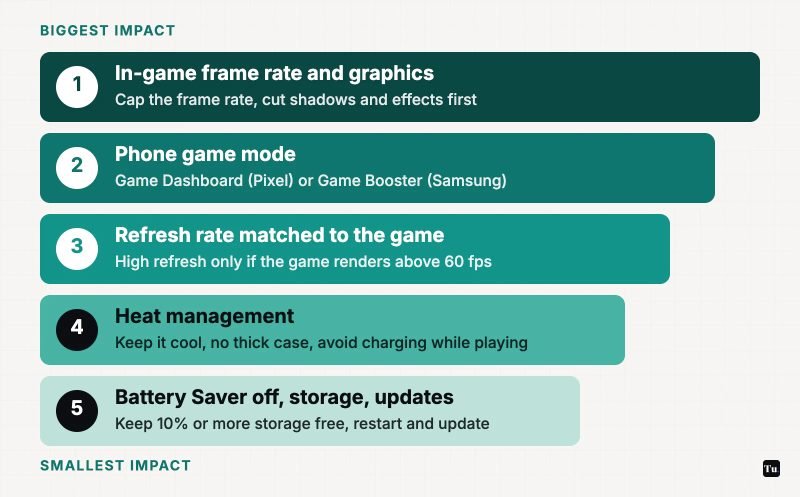
- Set the in-game frame rate and graphics so the frame rate holds steady.
- Turn on Game Dashboard (Pixel) or set Game Booster to Performance (Samsung) for that game.
- Use a high refresh rate only if the game renders above 60 fps.
- Keep the phone cool and Battery Saver off.
- Keep 10% or more of your storage free and stay updated.
Sources
- Android Developers: Game Mode API and interventions
- Android Developers: About the Game Dashboard
- Google Pixel Tablet Help: Game Dashboard settings
- Samsung US Support: Use Gaming Hub and gaming options on your Galaxy device
- Samsung Australia Support: Changing the game optimisation settings
- Pixel Phone Help: Screen and display settings (Smooth Display)
- Samsung US Support: Adjust refresh rate (Motion smoothness)
- Android Developers: Thermal API
- Android Help: Speed up a slow Android device
- Google Blog: Android 17 features
- Android Help: Fix battery drain problems (Battery Saver)