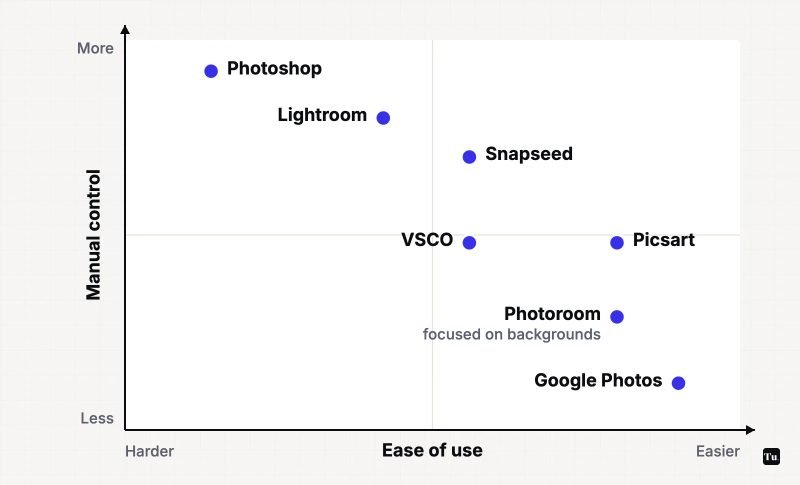
The right photo editor depends less on which app is "best" and more on what you're trying to fix. Removing a stranger from a beach shot, grading a set of travel photos, cutting out a product for an online listing, and building a collage are four different jobs, and the strongest photo editing apps for Android each focus on one or two of them.
This guide matches apps to jobs. It's based on current Google Play listings and developer help pages, reviewed in October 2026, not on hands-on testing. Where a feature needs a subscription, we say so.
Quick fixes and removing distractions: Google Photos
Start with the app you probably already have. Google Photos includes Magic Eraser for removing unwanted objects, Unblur for softening camera shake, and Portrait Light for adjusting lighting on faces, along with the usual crop, exposure and color tools. It's free, with no ads, and edits stay with your backed-up library.
For a lot of people, that's the whole answer. Install something else when you want more precise control, a particular look, or tools Google doesn't offer.
Precise manual edits for free: Snapseed
Snapseed, also from Google, is the strongest free editor on Android in our view. It has no subscriptions, purchases, ads or watermarks. Recent updates added realistic film filters with halation, bloom and grain controls, one-tap smart masking to isolate a subject or background, batch editing, and a camera mode that shoots with your chosen look applied. It opens RAW files as well as JPGs, and edits are non-destructive, so you can revert at any time.
Good for: anyone who wants real control without paying. Less good for: syncing edits across devices, since there's no cloud library.
Consistent edits across a whole set: Lightroom
Adobe Lightroom is built for editing many photos the same way. Presets, including newer film-style ones, adaptive presets and batch editing make a set of travel shots look like they belong together. Most editing sliders are free.
The paywall matters, though. Adobe's help pages list masking, lens blur, Generative Remove, the healing brush and cloud sync among the premium features. A subscription bought through Google Play unlocks those on mobile only; full desktop sync needs a broader Creative Cloud plan.
- Pros: excellent presets, strong batch workflow, consistent with Lightroom on desktop.
- Cons: the best selective tools need a subscription; requires an Adobe account.
A specific look: VSCO
VSCO is about mood rather than repair. Its film-emulation presets and grain tool are the attraction, and it doubles as a photo community where you can post your work. The free Starter tier includes 16 presets and essential tools. Membership is an annual subscription with a seven-day trial that unlocks a library of more than 200 presets and more advanced controls.
If you only want a film look occasionally, Snapseed's free film filters may be enough. VSCO earns its fee if you shoot and post a lot and want a consistent style.
Compositing, layers and generative fill: Photoshop
Adobe's full Photoshop app for Android arrived in 2025 and is a different tool from the older Photoshop Express. It brings layers, masks, selection tools such as Tap Select and Object Select, the Spot Healing Brush, Clone Stamp and Firefly-powered Generative Fill to a phone. Many core tools are free; Adobe's Photoshop Mobile and Web plan unlocks the premium set.
When it launched, Adobe listed Android 11 or later and at least 6GB of RAM, with 8GB recommended, so check your phone before planning a workflow around it.
Product photos and clean backgrounds: Photoroom
If you sell on Etsy, eBay, Vinted or Shopify, Photoroom is purpose-built for you. It removes and replaces backgrounds, adds realistic shadows, generates lifestyle scenes from a single product shot, and exports at the sizes each marketplace expects. Shopify sellers can connect a store and update listings directly.
Batch editing, premium templates and higher usage limits require a subscription. For an occasional background removal, Photoshop's free tools or Google Photos may do the job.
Collages, stickers and social graphics: Picsart
Picsart is the kitchen-sink option: templates, collages, stickers, a background remover, object eraser, retouch tools and a long list of AI generators, including a chat-style assistant called Aura. It's useful when the goal is a graphic for Instagram Stories rather than a corrected photo.
- Pros: huge template library; covers design and photo editing in one app.
- Cons: the free version shows ads, and the Plus and Pro subscriptions gate many of the headline features. The interface is busy.
Four things to check before paying
- Which tools are actually free. Open the app, load a photo and tap through every tool. Locked ones usually show a crown or lock icon. That tells you more than the store listing.
- Whether you need an account. Snapseed and Google Photos work with the Google account already on your phone. Adobe apps need an Adobe ID, and some editors push you to sign up before exporting.
- How the subscription renews. Several of these apps lead with a short free trial that converts to an annual plan. You can see and cancel renewals in the Play Store under Payments & subscriptions.
- What happens to your originals. Non-destructive editors keep the original so you can revert. Others save a new copy, which is safe but doubles the space each edited photo uses.
Which one should you install?
Our suggestion for most people: keep Google Photos for quick fixes and add Snapseed. That pair covers removal, retouching, film looks, masking and RAW editing without spending anything. Add Lightroom if you edit large batches and don't mind a subscription, Photoroom if you sell online, and Photoshop if you need layers.
Two practical notes. Edited copies and exported RAW files take up space quickly, so see our guide to freeing up storage on Android if your phone is filling up. And if you also work with clips, our companion guide to video editing apps for Android follows the same approach. For AI tools beyond photo editing, including chat assistants that can describe and analyze images, see AI apps on Android.
Sources
- Google Play listing: Google Photos
- Google Play listing: Snapseed
- Google Play listing: Adobe Lightroom
- Adobe Help: Lightroom for mobile premium features
- Google Play listing: VSCO
- Google Play listing: Photoshop
- Adobe Blog: Photoshop arrives on Android
- Google Play listing: Photoroom
- Google Play listing: Picsart